
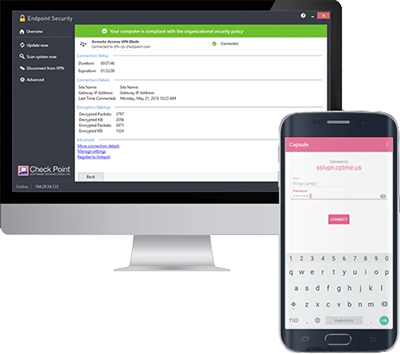
Check Point Endpoint Security VPN Download: A Safe Installation Guide
If you need to connect securely to a company or organisation’s network, you may be asked to install Check Point Endpoint Security VPN. The right download depends on your device, operating system and organisation’s configuration, so it’s important to use an authorised source rather than an unfamiliar download site.
What is Check Point Endpoint Security VPN?
Check Point Endpoint Security VPN is software used to create an encrypted connection between a device and a private network. Businesses and other organisations may use it to let authorised staff access internal systems when they are working remotely.
The VPN client is not necessarily the same as a general-purpose consumer VPN service. It may require details supplied by your employer or IT administrator, such as a gateway address, sign-in credentials or multi-factor authentication.
Where to download it
For the correct and current version, follow the instructions provided by your organisation’s IT team. They may provide the installer through a company software portal, device-management system or secure internal page. Some organisations also direct users to Check Point’s official website or support resources.
Before downloading, check that:
- The download link comes from your employer, IT administrator or an official Check Point source.
- The installer is intended for your operating system and device.
- You have permission to install the software and the information needed to set it up.
Avoid third-party download websites, file-sharing links and adverts offering “free” VPN installers. Unofficial installers may be outdated, altered or bundled with unwanted software.
How to install the VPN client
- Check your requirements: Confirm your operating system version and ask your IT team which client and version to use.
- Download the installer: Use the authorised link or software portal supplied by your organisation.
- Run the installer: Open the downloaded file and follow the on-screen instructions. You may need administrator permission.
- Restart if prompted: Some installations require a restart before the VPN can be used.
- Set up the connection: Enter the VPN details provided by your organisation and complete any required authentication steps.
- Test access: Connect to the VPN and check that you can reach the work services you need. Contact IT if access fails.
Installation screens and settings can differ between versions and operating systems. Follow your organisation’s instructions if they differ from these general steps.
Common download and connection problems
If the download fails, check that you have a reliable internet connection and enough storage space. If an installer is blocked, do not disable your security software or bypass device restrictions without approval. Your organisation may need to provide a different installer or authorise the installation.
If the client installs but will not connect, check that your internet connection is working and that you have entered the correct gateway and sign-in details. Confirm that your account is enabled for VPN access, and check whether your organisation requires multi-factor authentication. For repeated errors, contact your IT help desk and provide the error message and your device’s operating system version.
Keep your VPN client up to date
Use updates approved by your organisation. Keeping the client and operating system current can help address compatibility and security issues, but workplace devices may follow a managed update schedule. Check with your IT team before installing a different version or removing an existing VPN client.
In summary
To download Check Point Endpoint Security VPN safely, start with your organisation’s IT instructions and use only an authorised source. The correct client, connection settings and access permissions can vary, so your employer or network administrator is the best point of contact if you are unsure which version to install.
Top 5 Tips for Securely Downloading Check Point VPN Software
- Download Check Point VPN only from the official Check Point website or your organisation’s portal.
- Choose the version that matches your operating system.
- Check the installer’s digital signature before running it.
- Avoid third-party download sites and unofficial mirrors.
- Follow your organisation’s IT guidance and keep the client updated.
Download Check Point VPN only from the official Check Point website or your organisation’s portal.
Download Check Point Endpoint Security VPN only from the official Check Point website or your organisation’s approved software portal. This helps ensure you get a genuine, up-to-date installer that’s suitable for your device and reduces the risk of downloading tampered software or unwanted programmes from third-party sites. If you’re unsure which version to use, ask your IT administrator for the correct link.
Choose the version that matches your operating system.
When downloading Check Point Endpoint Security VPN, choose the version that matches your device’s operating system and its requirements. Using the correct installer helps the software install and run properly, while an incompatible version may fail or cause connection problems. If you’re unsure which version you need, check your organisation’s IT guidance or ask your IT administrator before downloading.
Check the installer’s digital signature before running it.
Before running a Check Point Endpoint Security VPN installer, check its digital signature to help confirm that the file comes from a trusted publisher and has not been altered. On Windows, right-click the installer, select Properties, then open the Digital Signatures tab and review the signer details. If the signature is missing, invalid or unexpected, do not run the file; delete it and obtain a verified installer from your organisation’s IT team or an official Check Point source.
Avoid third-party download sites and unofficial mirrors.
When downloading Check Point Endpoint Security VPN, avoid third-party download sites and unofficial mirrors. These sources may offer outdated or modified installers, or bundle unwanted software, putting your device and data at risk. Use the download link provided by your organisation’s IT team or an official Check Point source, and check with your IT administrator if you are unsure which version you need.
Follow your organisation’s IT guidance and keep the client updated.
When downloading Check Point Endpoint Security VPN, follow your organisation’s IT guidance to make sure you use the correct version and an authorised download source. Your IT team can also provide the settings and access details you need. Keep the client updated in line with your organisation’s update policy, as current software can help maintain compatibility and security.